Page Builder Fields In Raw HTML BigCommerce Page Template
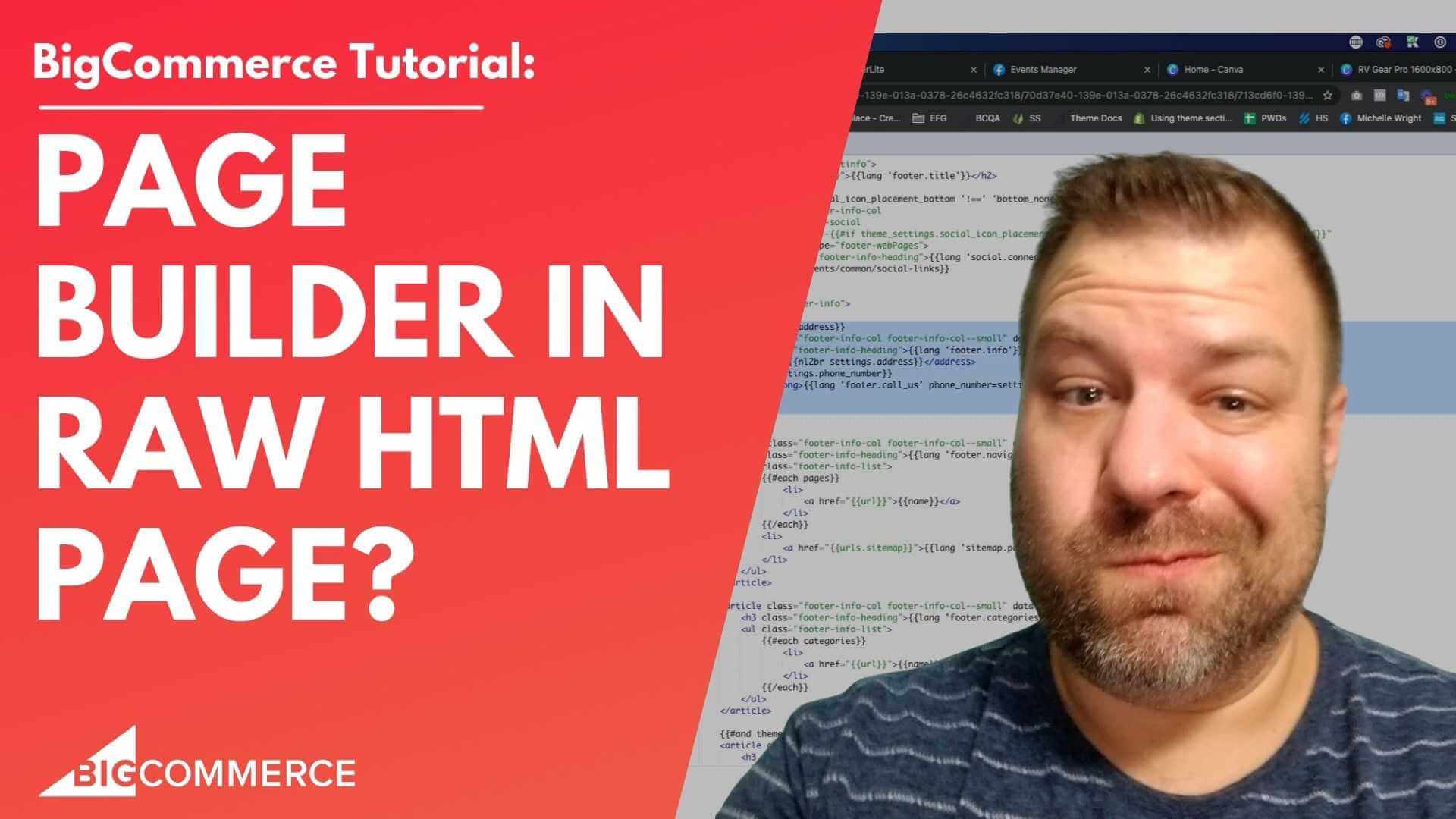
Are you trying to create custom landing pages on BigCommerce but struggling with how to use Page Builder fields in a raw HTML template? In this video, Kal Wiggins, developer and ecommerce expert, answers this question step-by-step. Whether you’re a store owner or developer, this video will show you how to achieve your goal of building custom landing pages without headers and footers, using Page Builder fields efficiently.
In this detailed walkthrough, Kal explores different solutions, from testing Page Builder fields on raw HTML pages to using custom CSS and advanced Stencil CLI methods for ongoing landing pages.
Key Takeaways from the Video
Here’s a quick summary of the main points covered in the video, with timestamps to guide you:
- Introduction & Purpose (00:02):
Kal introduces the video and the central question: Can you use Page Builder fields in a raw HTML BigCommerce template? - Testing Page Builder Fields in Raw HTML (01:38):
Kal explains what a raw HTML template is and tests inserting Page Builder fields. However, they don’t appear in the customizer for a raw HTML page. - Switching to WYSIWYG for Access (03:20):
Switching the page type to WYSIWYG allows the use of Page Builder fields, but the unwanted header and footer reappear, which is not ideal for landing pages. - Custom CSS to Hide Header and Footer (04:35):
Kal demonstrates how to hide the header and footer using custom CSS targeting specific pages, helping you create a cleaner landing page design. - Using Stencil CLI for Custom Templates (15:09):
For users creating multiple landing pages, Kal walks through using Stencil CLI to create a custom template that automatically hides the header, footer, and other unwanted elements.
Why You Should Watch This Video
If you’ve been struggling to build effective landing pages in BigCommerce, this video is for you. Kal breaks down not just the “how,” but also the “why,” offering real-world insights that will help you build pages that convert, while saving time and effort. Whether you need a one-off solution or are looking to streamline landing page creation for future campaigns, Kal’s techniques are invaluable for any ecommerce store owner or developer.
Full Transcript
(00:02) Introduction:
Can you use Page Builder fields in the raw HTML template in BigCommerce?
Hi, I’m Kal, a developer, store owner, and I run the ecommerce growth private community for store owners. Links below if interested!
I post eCommerce videos weekly—subscribe and hit the bell if you find this helpful.
(00:29) The Question:
Can you use Page Builder fields or widgets in a raw HTML template in BigCommerce?
Overview of raw HTML template:When creating a page, BigCommerce offers options: WYSIWYG editor, link, contact form, or raw HTML.
Raw HTML allows for pure HTML content, without headers and footers—perfect for email campaigns or landing pages.
(01:38) Testing Page Builder Fields:
Scenario: Can we insert Page Builder fields into a raw HTML template?
I tested this by inserting regions into the empty.html landing page template.
Created a page called “Landing Page 1 (LP1)” and temporarily added it to the navigation to access it.
(02:46) Customizer Test:
Opened the customizer to view LP1.
Result: The Page Builder regions didn’t appear in the customizer on the raw HTML page.
(03:20) The Workaround:
The goal is to create a landing page without headers or footers, often needed for direct response campaigns.
Changed LP1 from a raw HTML page to a WYSIWYG page, allowing access to Page Builder fields.
Problem: This method brings back the unwanted header and footer.
(04:35) Using Custom CSS to Hide Elements:
Solution: Add a body class to the template to target and hide the header and footer.Inspected the page using developer tools and identified the body class: page-lp-1.
Wrote CSS to hide the header and footer using this class.
(05:19) Further Adjustments:
Removed the breadcrumb and page title using CSS targeting specific elements.Found the breadcrumb class and used display: none to hide it.
Removed the page heading in the same way.
(06:50) Custom Template with Stencil CLI:
Why this matters: If you plan to create many landing pages, using CSS for each one can be tedious.
Solution: Use Stencil CLI to create a new template that hides the header and footer for all landing pages.Created a custom template file (page-landing-page.html) under the pages/custom/page/ folder.
Copied content from the default page template and added the custom CSS inline.
(15:09) Why Use Stencil CLI?
Stencil CLI allows you to code locally and preview changes before pushing them live.
Created a template that hides the header, footer, breadcrumbs, and page title for any page using this template.
This avoids the need to manually add custom CSS for each landing page.
(19:27) Creating More Landing Pages:
Demonstrated how to create new landing pages using the custom template.Created an LP2 page, applied the custom template, and confirmed it worked without needing additional CSS.
(21:55) Conclusion:
While you can’t use Page Builder fields directly in raw HTML templates, you can achieve the same outcome by creating custom templates.
If this was helpful, join our free community at jointecommercegrowth.com.
Need a developer? Reach out to Epic Design Labs.
(25:28) Final Thoughts:
You can’t directly use Page Builder fields on a raw HTML template, but custom templates offer a solution that meets the same needs.
For ongoing landing pages, it’s worth setting up a custom template to save time.
(26:29) Call to Action:
Found this video helpful? Like, subscribe, and leave a comment with what you’re stuck on.
Your question might be my next video!