How to Use Featured Products on BigCommerce
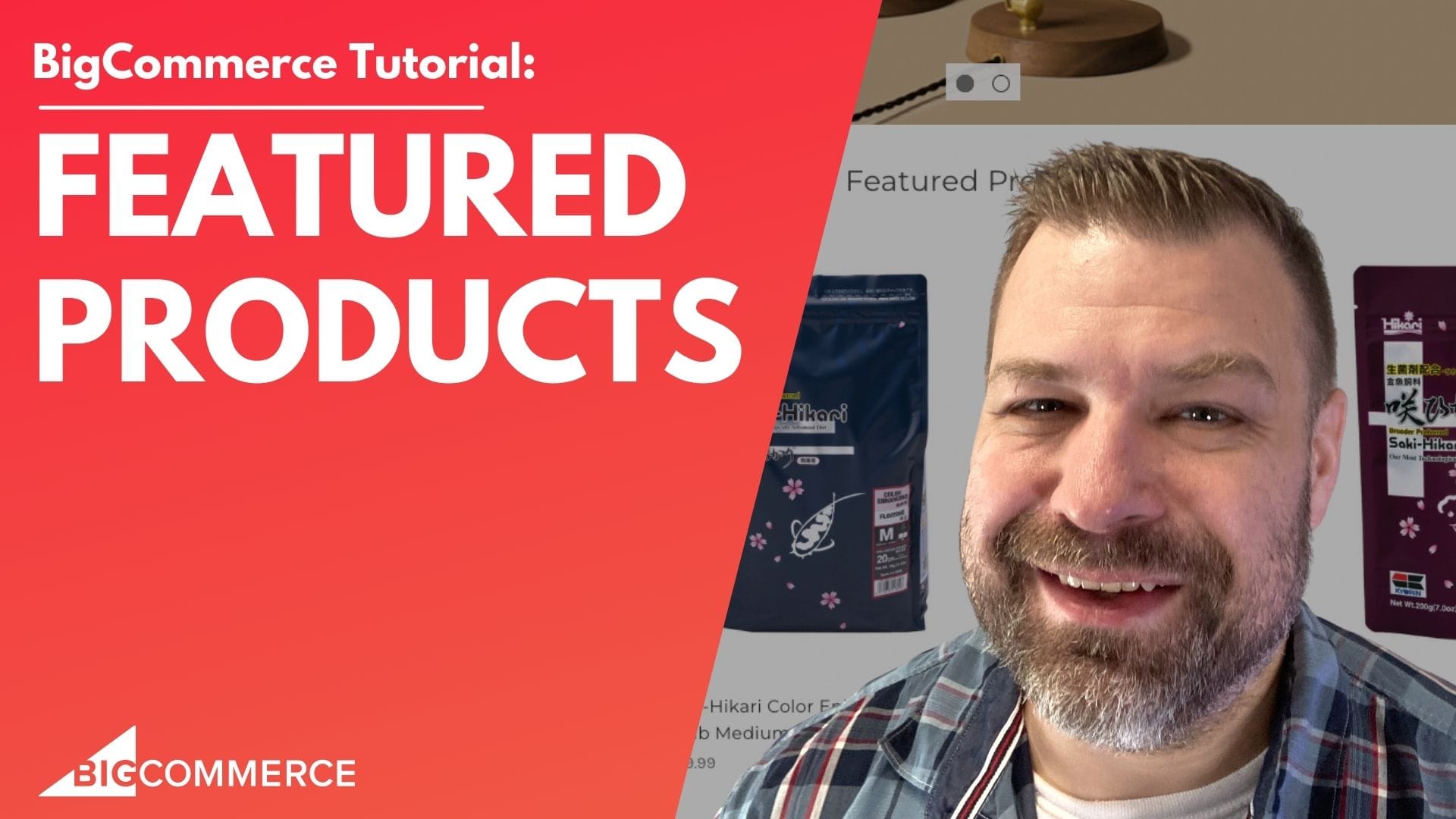
Highlight Key Items on Your Store as Featured Products
In this guide, we walk you through everything you need to know about BigCommerce featured products, a key feature that allows you to spotlight items on your homepage, boosting visibility and potentially driving more sales.
Whether you’re a seasoned BigCommerce store owner or just starting out, featured products can be a powerful tool to increase engagement with your best offerings. In the video below, Kal, a developer and store owner, explains how to leverage this feature to its full potential.
Watch the video below to learn:
- How to set and customize featured products on BigCommerce.
- The different methods to choose and display featured products.
- Pros and cons of the built-in BigCommerce system versus using widgets for full control.
Key Takeaways from the Video: How to Use BigCommerce Featured Products
Here’s a quick summary of the key points covered in the video, along with timestamps to help you navigate directly to the sections that interest you the most.
- (00:00 – 01:41): Introduction to the concept of featured products on BigCommerce, with a focus on how to display them on the homepage. Kal also explains how to adjust the number of featured products using the theme’s customization options.
- (02:18 – 04:57): Learn three simple ways to feature products in BigCommerce:
- Using the star icons in the product list.
- Using the bulk edit feature to update multiple products at once.
- Editing individual product settings to mark them as featured.
- (06:06 – 07:39): Understand the pros and cons of BigCommerce’s native featured product system. While it’s easy to set up, you might find it limiting if you want full control over the product order and titles.
- (08:15 – 09:57): An alternative method using widgets for manual control is demonstrated. This method gives you more flexibility, allowing you to handpick and organize products exactly the way you want.
- (11:01 – 11:55): Final thoughts on the different ways to feature products, with a note on how each approach can be customized based on your store’s needs.
Why Use Featured Products in BigCommerce?
Featured products help you highlight items that are either best sellers, new arrivals, or products you want to push for a promotion. By strategically placing them on your homepage, you increase the chances of catching a visitor’s attention, leading to higher conversions. Whether you stick with BigCommerce’s built-in system or take control with widgets, using featured products is a simple yet effective way to curate the shopping experience.
Full Transcript
Introduction: (00:00)
Hello! In this video, I’m going to show you everything you need to know about featured products on BigCommerce. Before we get started, my name is Kal. I’m a developer and a store owner, just like you. Let’s get going!
Let me share my screen. Boop!
1. Where Featured Products Appear:
(00:28)
Featured products show up on the home page of your BigCommerce store. They don’t appear on other pages.
2. How to Access Featured Products Settings:
(00:40)
To access the settings, go to the back end:
Navigate to Storefront → Themes → Customize.
This takes you to the Page Builder or Customizer.
Default Settings:
By default, you can display up to 4 featured products. If you want to adjust this, click on the Theme Styles button, go to the Home Page section, and scroll down to modify the number of featured products.
3. Changing the Number of Featured Products:
(01:01)
You can increase or decrease the number of featured products. For example, if you want to show only 3 products, just make the adjustment. Note that you might need to tweak the CSS to make it look clean.
Example:
Set it to 6 products, and they’ll be displayed in a grid.
If you want a carousel, you’ll need a developer to make this customization.
4. How to Feature Products:
(02:18)
There are 4 ways to feature products, and I’ll show you 3 of them:
Method 1: The Star Icon
(02:51)
Go to Products in the back end.
In the product list, click the star icon next to a product to feature it. This is the simplest and fastest method.
Method 2: Bulk Edit
(03:25)
Select multiple products using the checkboxes.
Click Bulk Edit, and you can feature or unfeature several products at once. This works like a spreadsheet and is super quick.
Method 3: Individual Product Page
(04:26)
Click into an individual product’s details.
Scroll to Storefront Details and toggle Set as Featured Product.
This method is slower but useful when editing individual products.
5. Randomization of Featured Products:
(02:18)
BigCommerce randomly selects which products to display if you have more featured products than what is set to show on the front end. For example, if you feature 50 products, it will randomly pick a subset to display.
6. Changing the Featured Products Label:
(06:06)
If you want to change the label from “Featured Products,” you’ll need to edit the Lang file in the theme. This is more complex and may require a developer.
7. Pros and Cons of the Featured Product System:
(07:08)
Pros:
Easy to set up.
Built-in functionality.
Multiple ways to manage featured products.
Cons:
No control over the display order.
Limited customization of labels or styles.
8. Alternative Method: Using Widgets for Full Control:
(08:15)
If you want more control, you can use the Product Set Widget in the Page Builder:
Drag the widget onto your page.
Manually add the products you want to feature.
Customize the grid, layout, and positioning of products.
Bonus Tip:
You can use a text or heading widget to add titles and headings to your featured product section.
9. Final Thoughts:
(11:33)
There are multiple ways to manage and display featured products in BigCommerce. Whether you prefer the built-in system or want full control with widgets, there’s a method that will work for your store.
Closing: (11:55)
Thanks for watching! If you need help with your BigCommerce store, reach out to us at epicdesignlabs.com. Also, keep an eye out for my next video on top app recommendations for BigCommerce. Check the description for the link!