How to Install the Facebook Pixel on BigCommerce
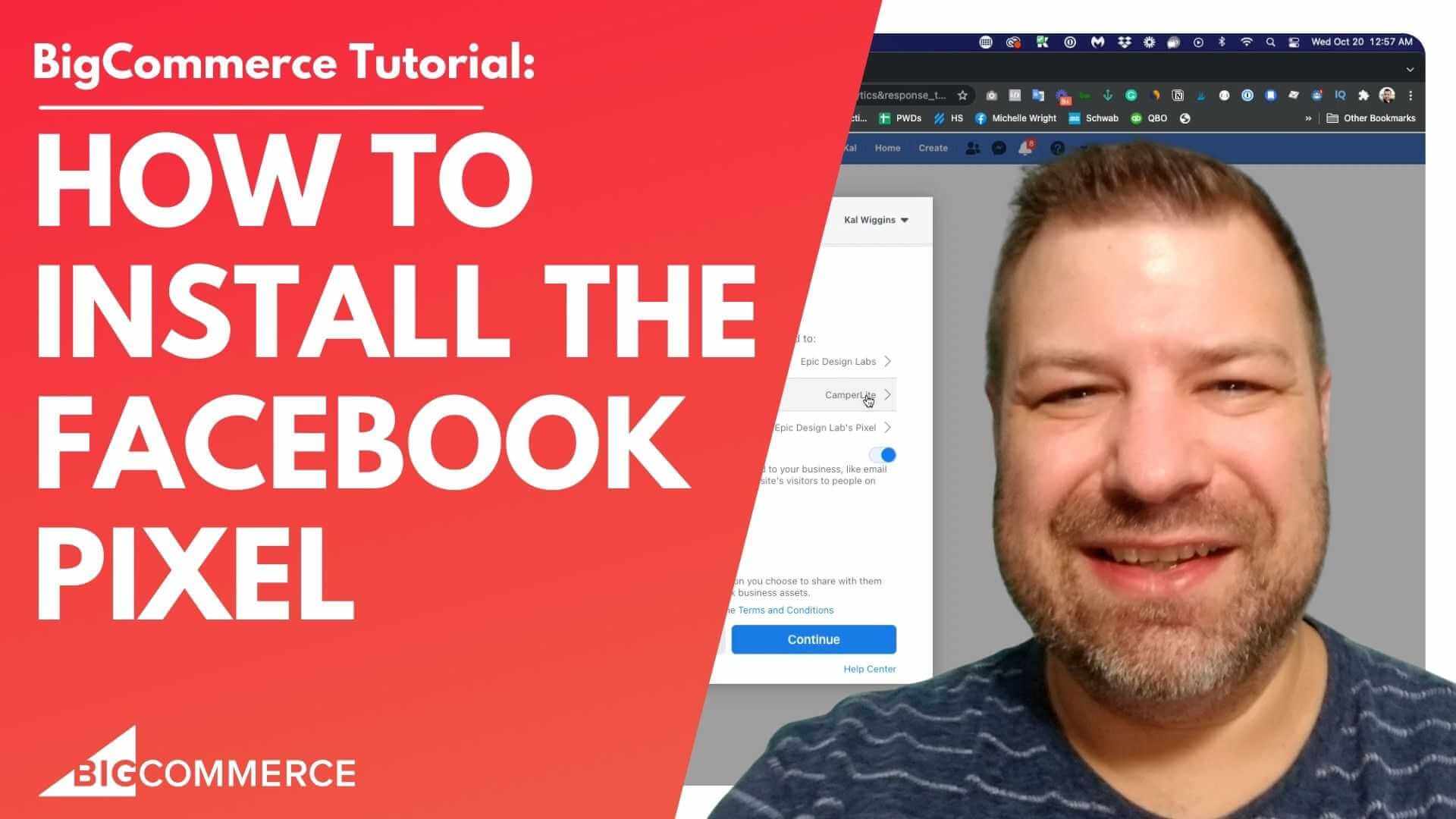
If you’re looking to improve your Facebook ad targeting by tracking conversions and website activity, installing the Facebook Pixel on your BigCommerce store is a must. In this video, I walk you through the entire process step by step, from setting up the pixel to verifying its correct installation. It’s easier than ever with the latest BigCommerce integration, so even if you’ve been confused before, this tutorial will simplify everything for you.
By the end of the video, you’ll have your Facebook Pixel properly connected and collecting valuable data for your ad campaigns.
Why You Should Watch This Video
If you’ve struggled with Facebook Pixel installation before, this video will make the process clear and straightforward. With the latest updates, you no longer need to manually copy and paste your pixel ID—BigCommerce has streamlined it for you. In just a few clicks, you’ll be up and running.
What You’ll Learn
- How to access Facebook Pixel settings in BigCommerce
- How to choose the correct Facebook Business Manager and Pixel
- How to give BigCommerce the permissions it needs to manage your Facebook ads
- How to verify that your pixel is correctly installed
Video Summary: 5 Key Steps to Install the Facebook Pixel on BigCommerce
- Introduction to Installing Facebook Pixel on BigCommerce
(00:02) — Kal introduces the video, explaining how to install the Facebook Pixel on a BigCommerce store. - Navigating to the Facebook Pixel Connect
(00:29) — Kal demonstrates how to log into BigCommerce, go to Advanced Settings, and find the Data Solutions section where the Facebook Pixel option is located. - Connecting the Correct Facebook Business Manager and Pixel
(01:01) — Kal explains how to select the correct Business Manager, Facebook Page, and Pixel that will be connected to the store, using his own store’s setup as an example. - Granting Permissions to BigCommerce
(01:38) — Kal walks through the steps to give BigCommerce permission to manage your Facebook business, including connecting Instagram accounts if applicable. - Verifying the Pixel Installation
(03:07) — Kal verifies the successful installation by checking the Pixel ID on the page and confirming it matches the ID in Facebook Business Manager.
Watch the Full Video Tutorial
If you’re ready to get your Facebook Pixel up and running on BigCommerce, hit play on the video above. This step-by-step guide ensures you won’t miss a beat in setting up this essential marketing tool. If you have any questions or need more help, feel free to leave a comment on the video or reach out!
Full Transcript
(00:02)
Hello! Are you trying to install your Facebook pixel on BigCommerce and feeling a little lost? I’m going to show you how easy it is. In this video, we’ll go over how to install the pixel on your BigCommerce store.
Before we get started, my name is Kal. I’m a developer extraordinaire, just like you, and I run a community of store owners called Ecommerce Growth. I’ll put a link at the end if you want to join us. Each week, I post more ecommerce videos, so if you find this one helpful, be sure to subscribe and hit the bell to see even more.
(00:29)
Alright, let me share my screen and walk you through how this happens.
First, log into your BigCommerce store.
Go to Advanced Settings and then Data Solutions.
You’ll see a big page that looks like this (demonstrating). On this page, there’s an option that says Facebook Pixel Connect. Now it says “Connect with Facebook Pixel.”
Previously, you had to find your Facebook Pixel number and put it in here, but now they’ve streamlined it. You just need to log in and tell it:
Which Business Manager you’re connecting to,
Which Facebook page this is pertinent to, and
Which Pixel you want to use.
(01:01)
In my case, I need to switch from my Epic Design Labs pixel to my Camper Light pixel, because that’s the store I’m installing it on. I almost picked the wrong pixel there! This looks good—this is my Business Manager, Epic Design Labs.
If you don’t have a Business Manager, yours might be blank. That’s okay. Just select the relevant page and pixel.
Pixel: Camper Light
Business Manager: Epic Design Labs
Click Continue.
(01:38)
Now, what is BigCommerce allowed to do?
Manage your business? Yes.
Access all your pages? Sure, some of the Instagram accounts I have attached are listed here too.
So, I’m going to select Yes for all that and click Next.
(02:20)
Spinning… spinning… spinning… There we go, you’re all set! Done! That is so much easier than it used to be.
Let’s double-check if it worked, because I got kicked out of my BigCommerce account halfway through. Let’s log back in and see.
(03:07)
It brought me right back to the page, and here’s what it should look like. It should show your Pixel ID. To double-check this, you can log into your Business Manager, or have your ads person log in and confirm the Pixel ID.
In my case, it ends in 0058—and this matches what we see here, ending in 0058. Success! Data should start showing up in our Pixel audiences soon.
(03:41)
That’s all there is to it! It couldn’t be easier with the new setup. It used to be much harder, but now it’s just click, click, click. Just make sure it connects to the right page, and you’re good to go.
If you found this helpful, hit the like button, and consider joining our community of store owners at join.ecommercegrowth.com.
If you need a developer for your store, you can find me at epicdesignlabs.com. I’m always looking for ways to help you build million-dollar stores. If you’re stuck on anything, leave a comment below, and maybe that will be my next video.
Thank you so much, and I will see you next time!