How to Change Fonts in BigCommerce
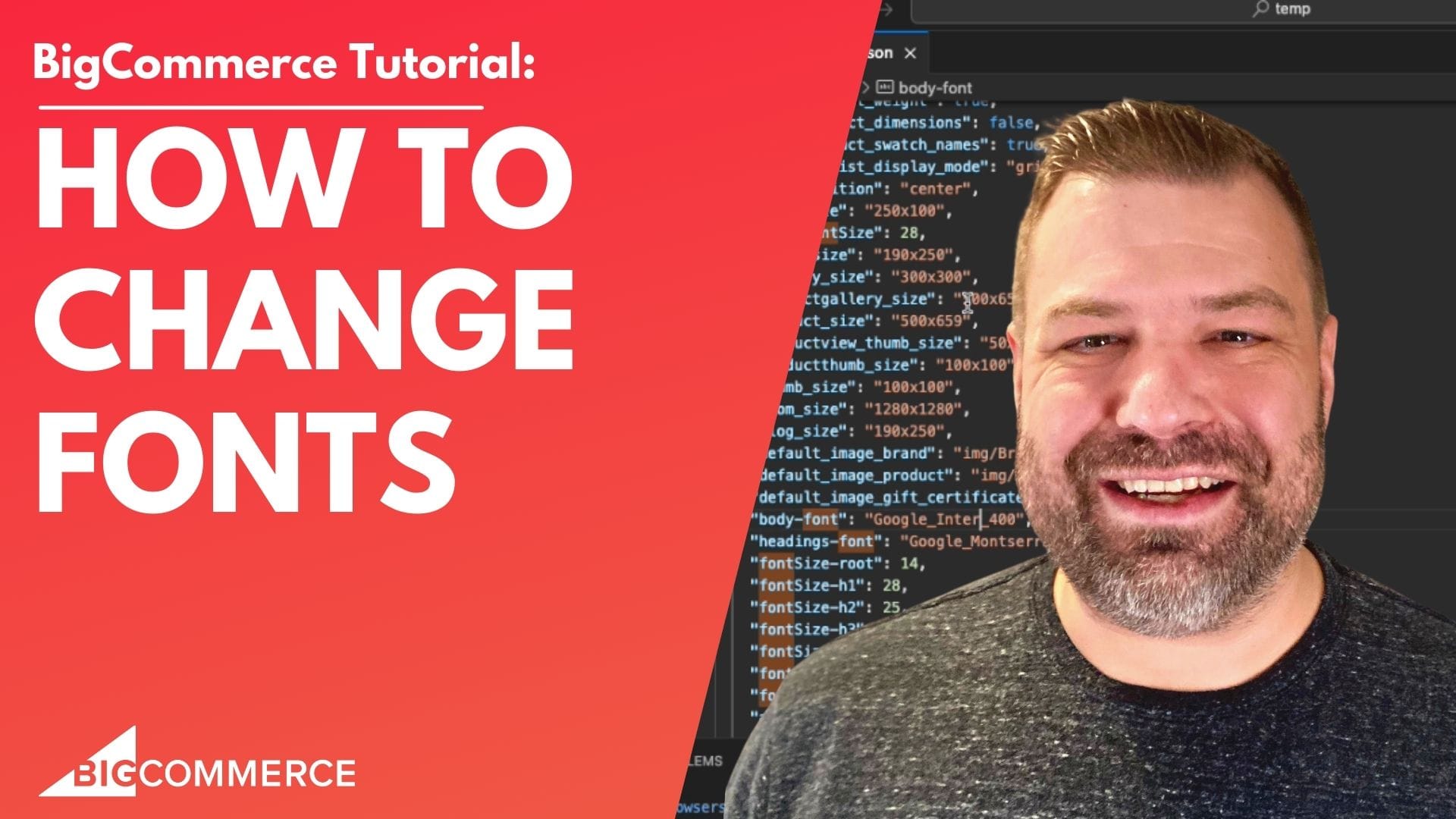
In the ever-evolving world of ecommerce, standing out is key to success. Your online store’s appearance plays a pivotal role in attracting and retaining customers, and one aspect that can make a significant difference is your choice of fonts custom icons. But what if you find the default font options on BigCommerce limiting? Don’t worry; we’ve got you covered!
In this video, our CEO Kal, a seasoned developer and store owner just like you, takes you on a journey through the process of changing fonts and icons in your BigCommerce store. Whether you’re a BigCommerce designer, developer, or store owner, this video is packed with valuable insights conversion techniques that will help you transform the look and feel of your online store.
Exploring Custom Fonts in BigCommerce
Before diving into the specifics, let’s provide you with a sneak peek of what you can expect in the video:
- Kal walks you through the BigCommerce theme customization interface.
- Discover how to access global styles and locate font settings.
- Learn how to change the default fonts to give your store a unique look.
- Kal shares tips on optimizing font choices for performance and aesthetics.
- Get hands-on guidance on editing the config.json file to add new fonts.
- Understand the naming structure for Google fonts and how to integrate them seamlessly.
- Witness the changes in real-time as Kal demonstrates font replacement in action.
- Discover how to push your font changes to your live BigCommerce store.
Now, let’s delve deeper into the process of changing fonts in BigCommerce. Kal demonstrates how you can access the store theme and customization settings, find global styles, and tweak the default fonts. The video provides step-by-step instructions, making it accessible for both beginners and experienced users.
Taking Control of Your BigCommerce Font Choices
Are you tired of the limited font choices offered by the BigCommerce platform? Kal explains how you can extend your options by editing the config.json file. While this might sound a bit technical, the video breaks it down into manageable steps. You’ll learn how to change fonts’ names, weights, and styles to match your store’s unique branding and design requirements.
Kal also emphasizes the importance of using Google fonts for their performance benefits and compatibility with BigCommerce. You’ll discover how to format the font names correctly to ensure a seamless integration into your store name code.
Ready to Transform Your BigCommerce Store?
Are you eager question learn how to unlock a world of font possibilities for custom pages in your BigCommerce store? This video is your gateway to unleashing your store’s creative potential. With Kal’s guidance, you’ll gain the skills and knowledge needed to take control of your store’s fonts and create a visually stunning and unique online shopping experience for your customers.
So, what are you waiting for? Click the video above to watch the full tutorial and start changing fonts in your BigCommerce store today!
Full Transcript
(00:00) Introduction
“Hello everybody! In this video, we’re going to go over how to change fonts in your BigCommerce store. Before we get started, my name is Kal. I am a developer, a store owner just like you, and I run an online community for store owners like us. I’ll have a link at the end. Let me share my screen and show you some stuff.”
(00:20) Navigating to Customize Fonts
“First of all, when we come into your BigCommerce store, you can click into:
Storefront
Themes
Click Customize
You’ll see I am using the Cornerstone Light version. If I click into, say, the Header, we’ll try to find where the fonts are set. Instead, we’ll go to Global Styles. Here you’ll find options for Body Text and Links. Currently, I have the body text font set to Carla, but we can switch to Roboto or Source Sans Pro. Not many choices, right?”
(01:15) Adding More Font Choices
“Now, you probably want more options than just Carla, Roboto, and Source Sans Pro. Good news: It can be done! The bad news is that it has to be done using Stencil Local because the theme editor does not allow you to edit the config.json file.”
(01:46) Configuring the Font
“So, here’s how it works. I’ve already downloaded my theme locally and run npm install. I’ll now run stencil start. While that’s going, let’s open the config.json file and search for ‘font.’”
“Here, you’ll see settings for body-font and headings-font. BigCommerce will always load two Google Fonts, so I recommend sticking with a Google Font since BigCommerce is already optimized for them.”
(03:15) Changing the Font in config.json
“Let’s say we want to change the Body Font. You’ll see the naming structure:
Google_Carla_400Google: Means it’s a Google Font
Carla: The font name
400: The font weight
If you want a different font, like Enter, you’d change it from Google_Carla_400 to Google_Enter_400. You’ll need to update multiple instances in the file for the General Settings and Light Variant.”
(05:30) Inspecting and Testing the New Font
“After saving the changes, I’ll re-run the stencil, and as you can see when I inspect the font on my page, it now shows font-family: Enter for the body text. This means the font has been successfully updated.”
(06:47) Pushing Changes Live
“This change only affects my local instance, so I’ll now push it to my store. Once it’s live, the Enter font will be available as a choice in the BigCommerce Customizer. However, the customizer may not reflect the change visually in the dropdown, even though the font is active.”
(08:01) Wrapping Up
“So that’s how you change fonts in BigCommerce! If you don’t have Stencil Local, you’ll need a developer’s help, but as you saw, it’s a quick task. You can hire a developer on Upwork or reach out to Epic Design Labs (that’s my team) if you need ongoing help.”
“Also, if you’re interested in joining our community, visit eCommerceAmplifiers.com. Thanks for watching! Leave me a comment if this was helpful, or let me know if you’re stuck on something else. It might just be the topic for my next video!”